



A complete step by step guide for business owners, agencies, and teams in 2026
Managing a Google Business Profile often requires collaboration. Whether you are working with an SEO agency, a marketing consultant, or a trusted team member, giving the right level of access helps keep your business information accurate, secure, and updated. One of the most common requests is adding someone as a Manager to help handle reviews, posts, updates, and daily optimization without giving them full ownership control.
This complete guide explains everything you need to know about sharing Google Business Profile access and adding a Manager safely and correctly. It covers permissions, preparation steps, security considerations, and a clear walkthrough so anyone can follow along.
What Is Google Business Profile Access Management
Google Business Profile access management allows account owners to assign different roles to users who help manage the listing. Each role provides specific permissions. This system ensures that businesses can collaborate while maintaining control over important settings and ownership rights.
Adding a Manager is a common practice because it allows team members or partners to manage day to day operations without risking full account ownership. Managers can respond to reviews, update business details, create posts, upload photos, and monitor performance insights.
Proper access management improves workflow efficiency, prevents accidental mistakes, and protects your business from unauthorized changes.
Understanding User Roles Before Adding a Manager
Before you grant access, it helps to understand how different roles work inside Google Business Profile.
Primary Owner
The Primary Owner has complete control over the listing. They can add or remove users, transfer ownership, and delete the business profile. Every listing has only one Primary Owner.
Owner
Owners have nearly full administrative access. They can manage users and settings but do not hold the same ultimate control as the Primary Owner.
Manager
Managers have operational control but limited administrative authority. They can update business information, create posts, respond to reviews, and manage photos. They cannot remove owners or delete the listing.
Choosing the right role protects your business. If you only need someone to help manage daily tasks, Manager access is usually the safest option.
Why Businesses Add Managers to Their Google Business Profile?
There are several practical reasons to add a Manager rather than giving full ownership access.
Agencies often need access to optimize local SEO and maintain accurate listings. Marketing professionals use Manager access to publish posts and track engagement. Customer service staff can respond to reviews and messages quickly. Business partners may also require limited access to help maintain information accuracy.
Adding Managers allows collaboration without risking control of the listing. This helps prevent unauthorized ownership changes or accidental account loss.
Preparation Before Sharing Access
Before you start the process, take a moment to prepare the following details.
Make sure you are logged into the correct Google account that owns the business listing. Only Owners and the Primary Owner can add new users. Confirm the email address of the person you want to add. The email must be associated with a Google account.
Double check that your business listing is verified and accessible from your dashboard. If you manage multiple locations, confirm that you are editing the correct business profile.
Taking a minute to confirm these details prevents access issues later.
Step by Step Guide to Add a Manager to Google Business Profile
Follow the process below to share access and add someone as a Manager to your Google Business Profile.
Step 1: Log Into Your Google Business Profile
Visit www.google.com/business and sign in using the account that owns or manages the business listing or directly go to business.google.com. Make sure you are using the correct email address associated with the profile.
Step 2: Open the Correct Business Profile
Once logged in, locate the listing for your business, such as Connect Home Services. If you manage multiple locations, select the specific business profile you want to edit.
Step 3: Access Business Profile Options
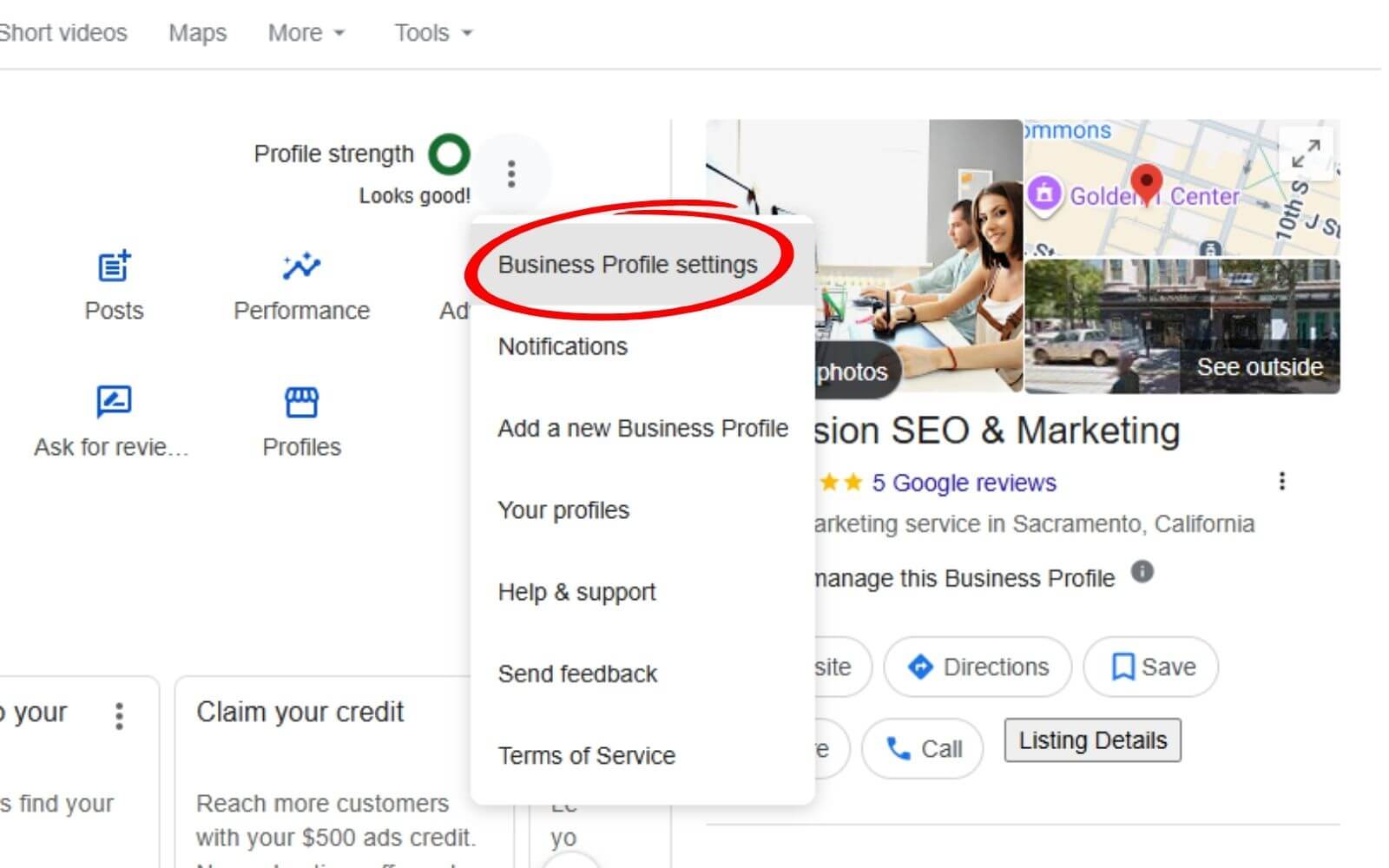
Find the three dot menu in the profile management area. This menu contains additional management options related to account settings and access controls.
Step 4: Open Business Profile Settings
From the menu, choose Business Profile Settings. This section includes administrative controls, user permissions, and advanced configuration options.
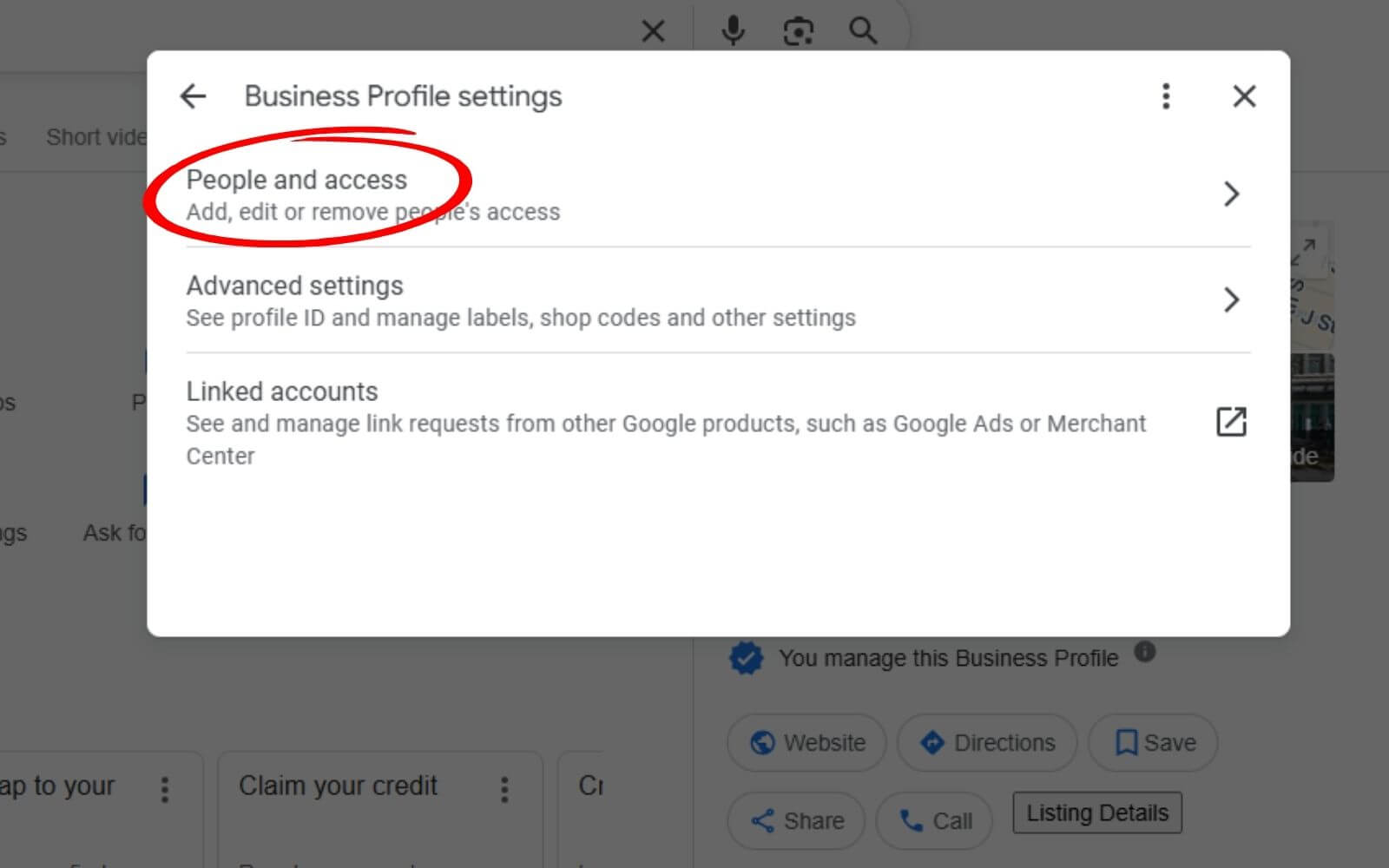
Step 5: Navigate to People and Access
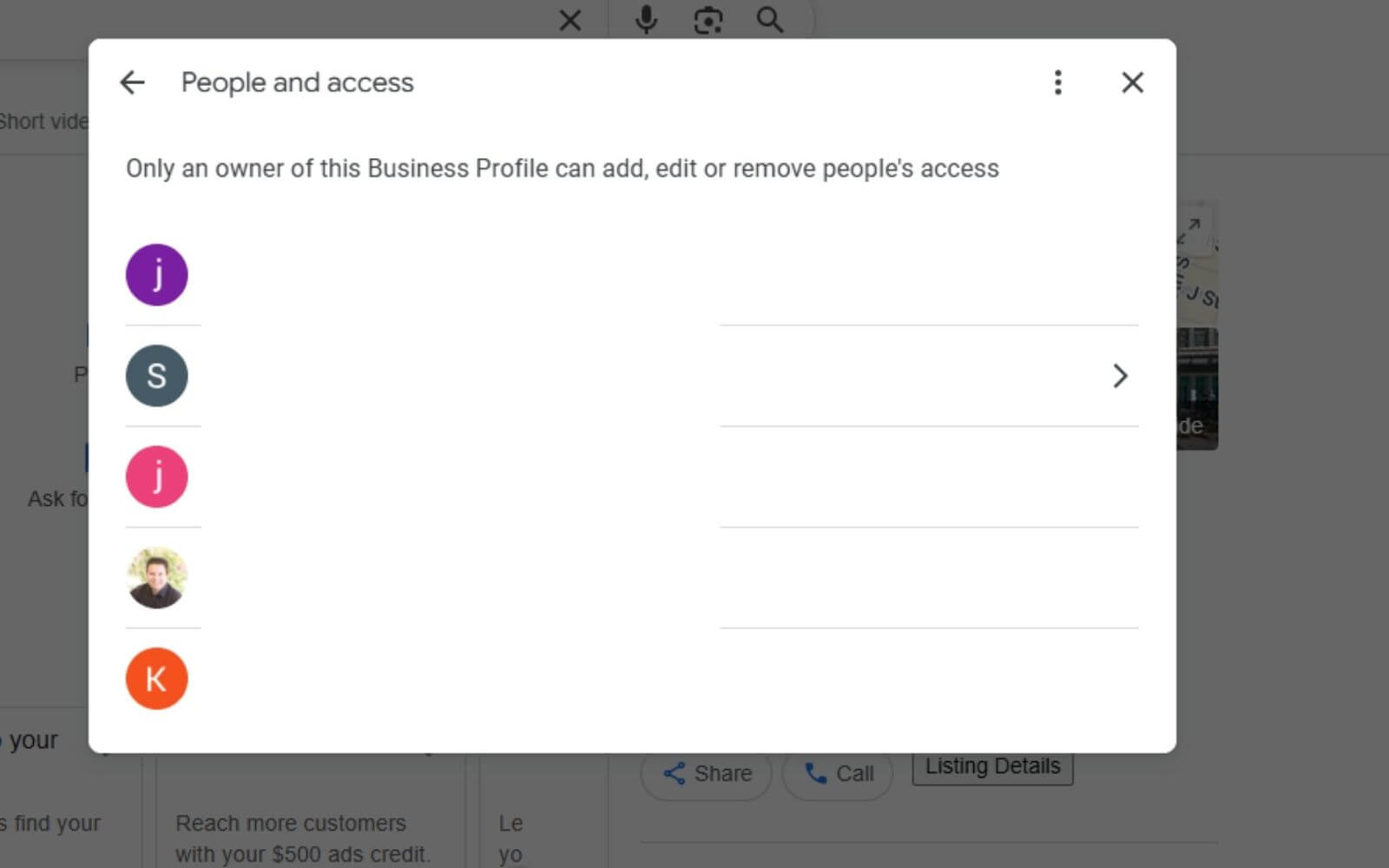
Inside the settings panel, click on People and Access. This page shows all current users, their roles, and the available options to add or remove users.
Step 6: Add a New User
Only Owners or the Primary Owner can add new users. Look for the Add option and click it to begin the invitation process.
Step 7: Assign Manager Role
Enter the email address of the person you want to invite. Choose Manager as the role to give them operational access without full ownership control. Confirm and send the invitation.
Once the invitation is accepted, the new Manager will gain access to the listing.
What Happens After You Add a Manager
After sending the invitation, the new user must accept it through their Google account. Once accepted, they can begin managing the listing immediately within their assigned permissions.
You will see their name listed under People and Access with the Manager role. If needed, Owners can later change roles, upgrade access, or remove users entirely.
Keep communication clear with your team so everyone understands responsibilities and expectations when managing the profile.
Security Best Practices When Sharing Access
Maintaining account security is essential when granting access to others.
Only add trusted individuals or verified agencies. Avoid giving Owner access unless absolutely necessary. Review your user list periodically to remove inactive or former team members. Enable two factor authentication on your Google account for additional protection.
Clear internal policies around profile updates and review responses also help maintain brand consistency and reduce mistakes.
Common Problems and How to Fix Them
Sometimes users encounter issues when trying to add Managers. Here are common problems and simple solutions.
If you do not see the Add option, confirm that you are logged in as an Owner or Primary Owner. If the email address cannot be added, make sure it is connected to a Google account. If the new user cannot access the listing, confirm that they accepted the invitation through their email.
In rare cases, Google may temporarily restrict access changes for security reasons. Waiting a short period and trying again usually resolves the issue.
When to Upgrade or Remove Access
Business needs change over time, so it is important to review access regularly.
Upgrade a Manager to Owner only if they require full administrative control. Remove access immediately when a staff member leaves your company or when an agency contract ends. Keeping your user list current protects your business from unauthorized changes and maintains strong security.
Final Thoughts
Sharing Google Business Profile access and adding a Manager is a simple but powerful way to improve collaboration while protecting your business listing. By understanding user roles, preparing the right information, and following the step by step process, you can safely grant access without risking ownership control.
Regularly reviewing permissions, maintaining clear internal communication, and following security best practices ensures your listing stays accurate, professional, and well managed. Whether you are working with an agency or expanding your internal team, proper access management keeps your Google presence running smoothly and securely.